I redesigned HighLevel’s invoice builder around the invoice, not the settings
Merchants were struggling to publish their first invoice. As the sole designer, I reorganised the builder around that task, with payment settings, layouts, reminders and accounting beside the document instead of somewhere else.
- Company
- HighLevel
- Product
- Invoice builder
- Role
- Senior product designer
- Team
- 1 PD · 1 PM · 2 SDEs · 3 SDETs
- Timeline
- November 2025 – January 2026
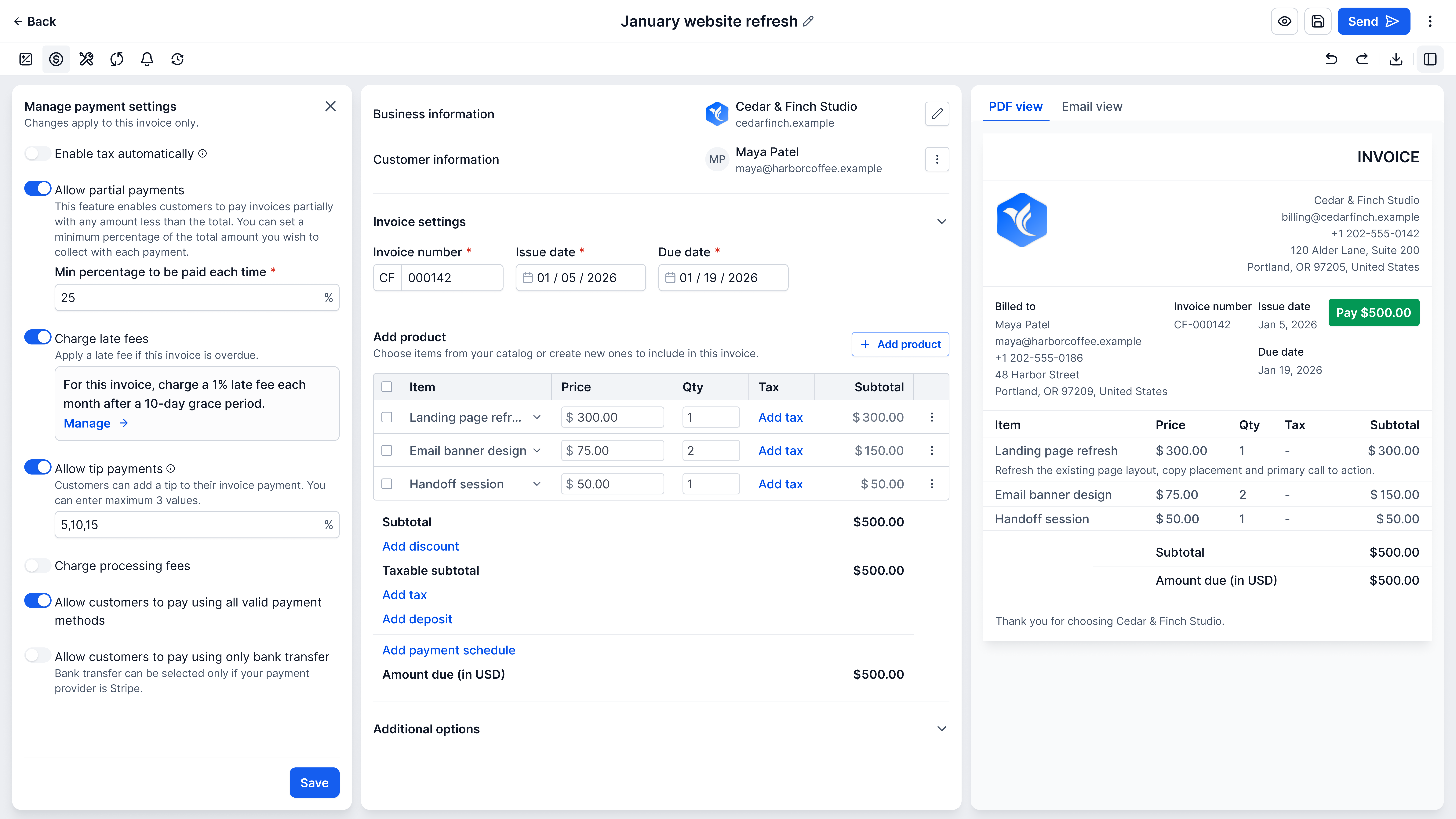
The builder with one invoice’s payment settings open: configuration on the left, the draft in the middle and the preview on the right. The main invoice examples use fictional sample data.
01 / Context
The first invoice was the hard part
Each request made sense on its own.
Together, they had made the builder harder to work through.
How I found it
One problem behind many requests
I started noticing the same friction in customer feedback, support tickets, calls and town halls: merchants were struggling to get their first invoice published. The builder had grown as individual requests were added, and each addition made sense, but the overall flow had become harder to work through.
I went back through the tickets to understand the common problem behind those requests. The issue was not just what merchants could do, but where they had to go to do it.
Before the redesign
The work was split across settings and builders
The earlier editor already showed the invoice beside its preview, but the work around it was split. Reminder settings and payment defaults lived in separate document settings. One-time and recurring invoices also had separate builders, with separate creation options on the invoice list.
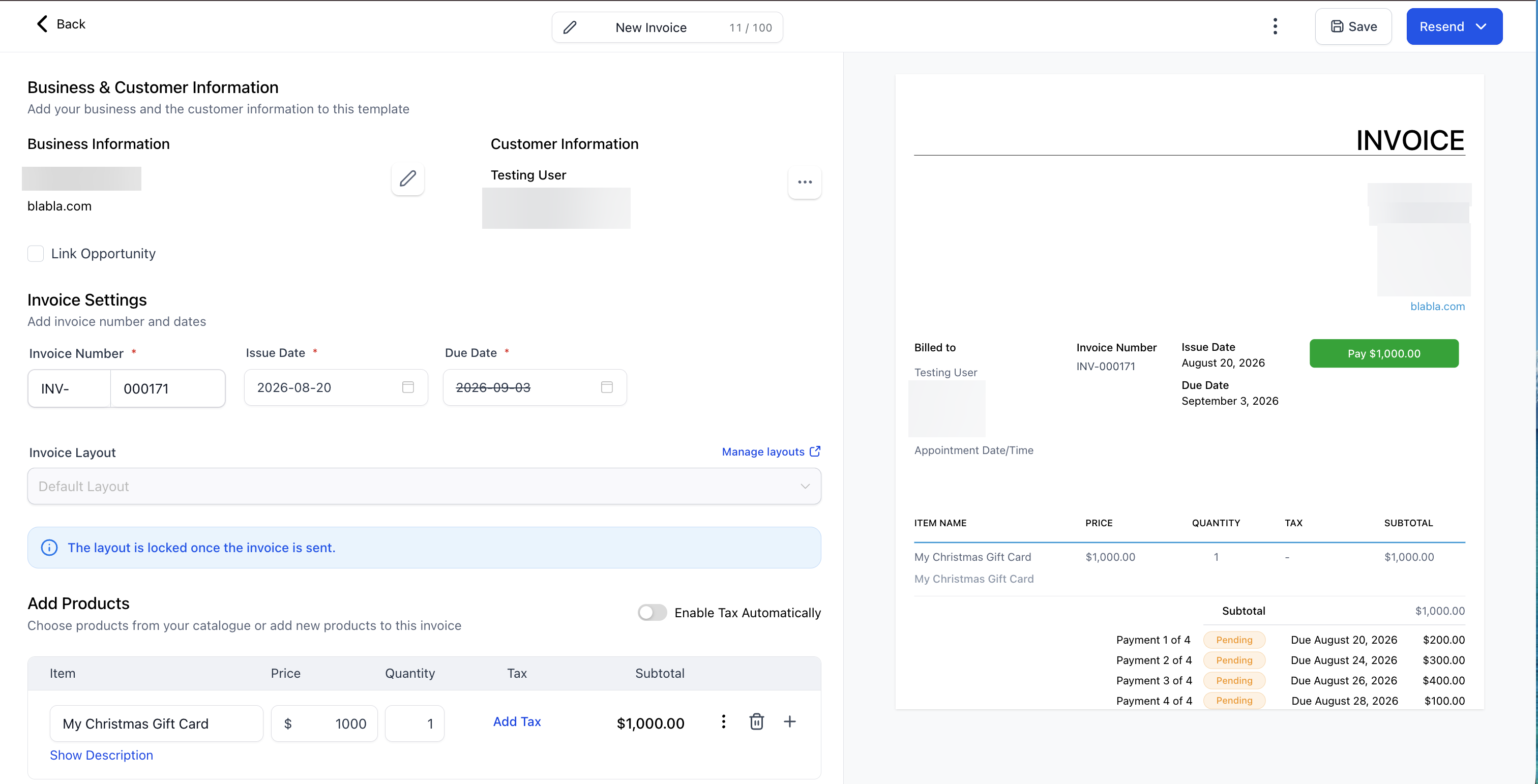
The earlier builder already placed the invoice form beside its preview. This capture shows an invoice after sending.
That was the pattern I wanted to address. Instead of continuing to add controls around individual requests, I stepped back and reworked how the invoice workflow was organised.
I anchored that work on one principle: everything needed to create, customise, automate and send an invoice should live in one uninterrupted workspace, without sacrificing correctness.
I reworked the builder’s information architecture around it and proposed it to the team and leadership. Once the direction was approved, I owned the high-fidelity design, collaborating with the PM and engineering team.
02 / Workspace
Reorganising the builder around the invoice
Configuration moved beside the draft and its preview.
One-time and recurring invoices moved into one builder.
The workspace
Configuration, authoring and the preview side by side
I organised the builder around the document. With nothing else open, authoring is on the left and the invoice preview on the right. Every configuration action sits in one row above the editor, and each opens its panel on the left — configuration, authoring and the preview side by side, so the invoice never leaves the screen.
Drafting stays the primary task: products are found or created from the line itself, with totals recalculating as quantities and prices change. The redesign was also part of the move to HighLevel’s product design system, so it worked within that system’s components.
I brought one-time and recurring invoices into the same builder. An invoice could stay one-time or adapt to recurring billing when needed.
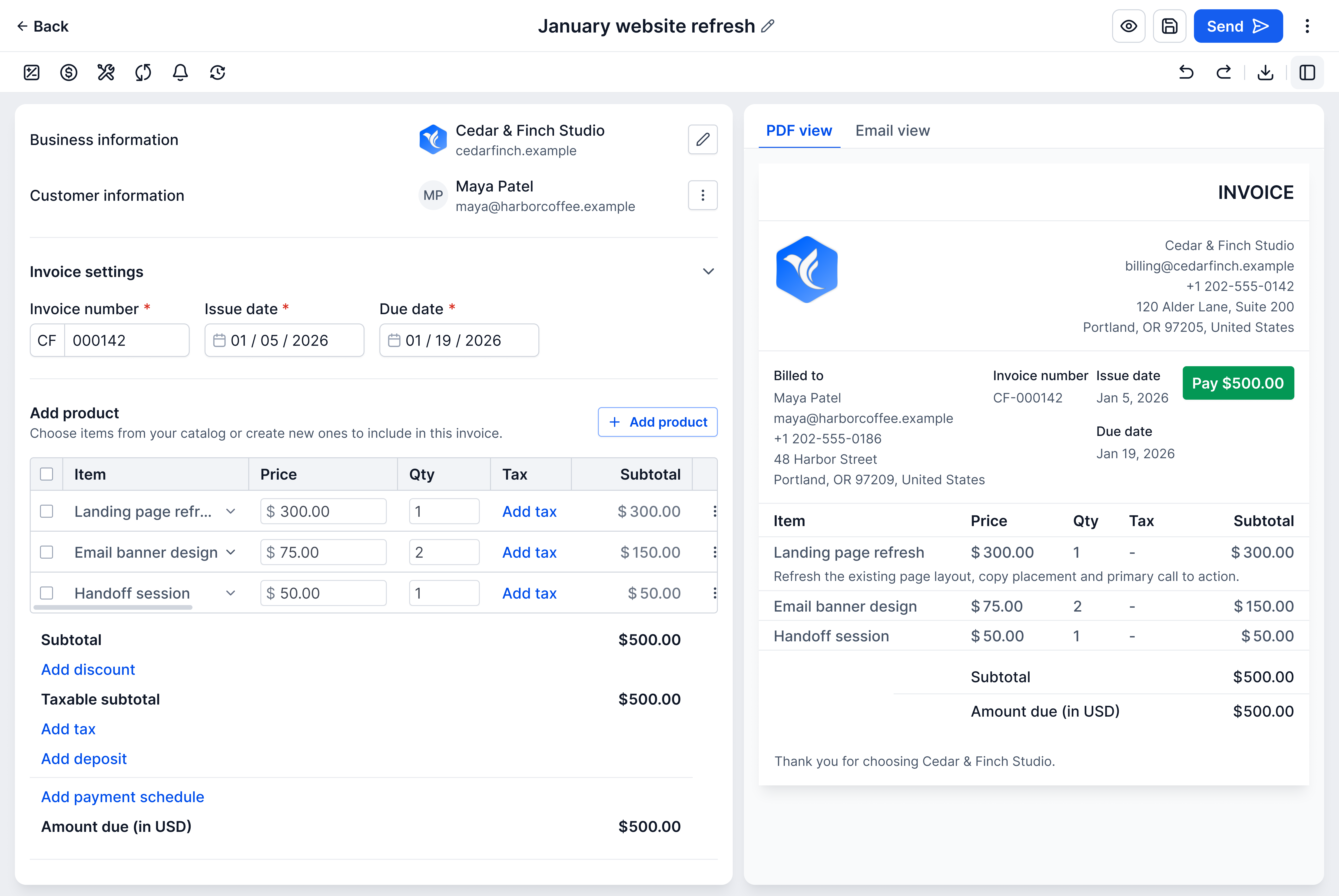
The editor with no panel open: authoring on the left, the invoice preview on the right, configuration controls above both.
Recurring invoices
One builder for one-time and recurring invoices
When a merchant added a subscription-based product to a one-time invoice, I made that change explicit. The builder showed a message asking them to convert the invoice rather than changing its type silently. After they chose ‘Convert invoice’, the same builder adapted to recurring configuration.
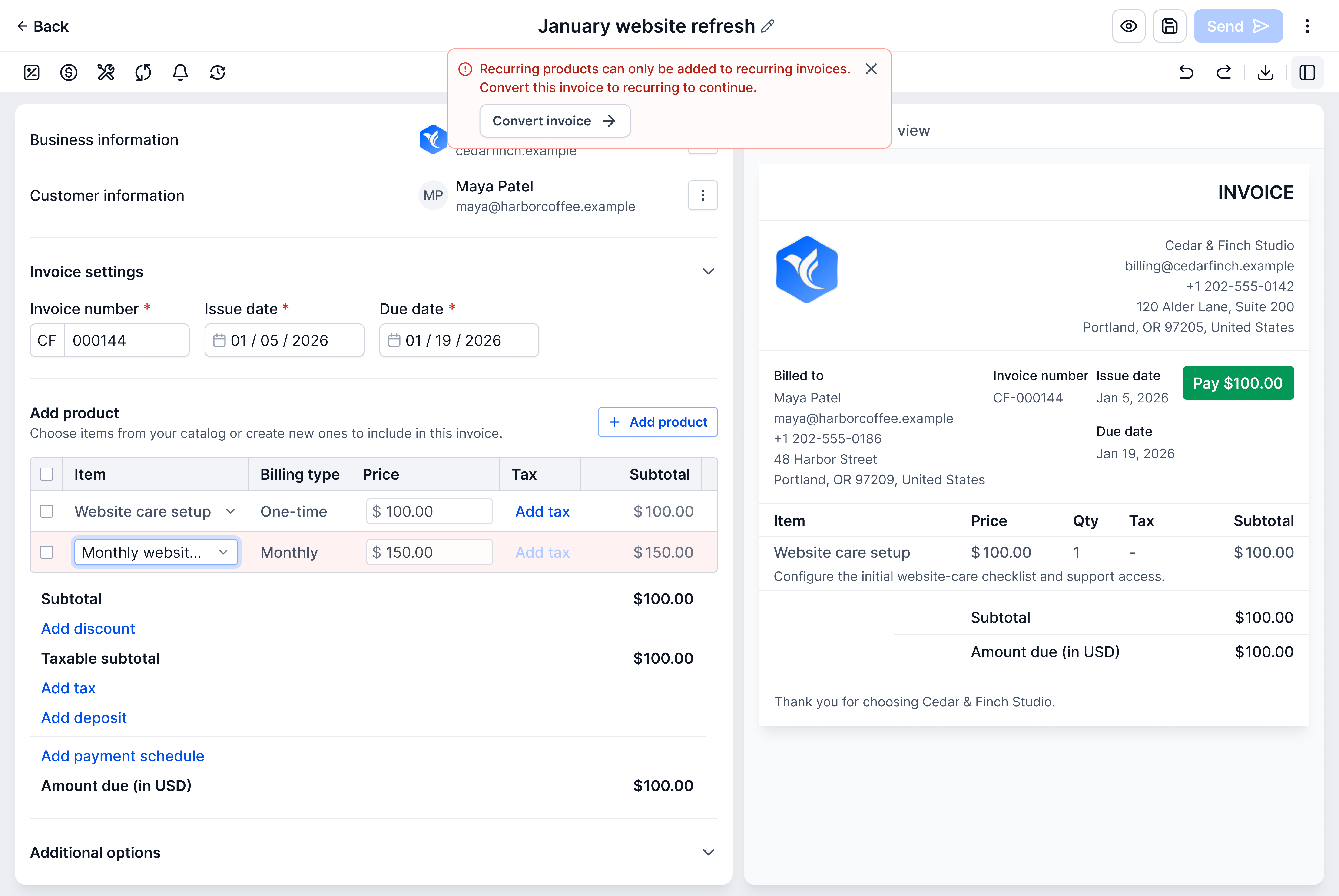
A recurring product triggers a conversion prompt before the invoice can be sent.
Layouts
Appearance as part of authoring
I brought layout management into a panel beside the draft and preview, with templates and their preview and edit controls together.
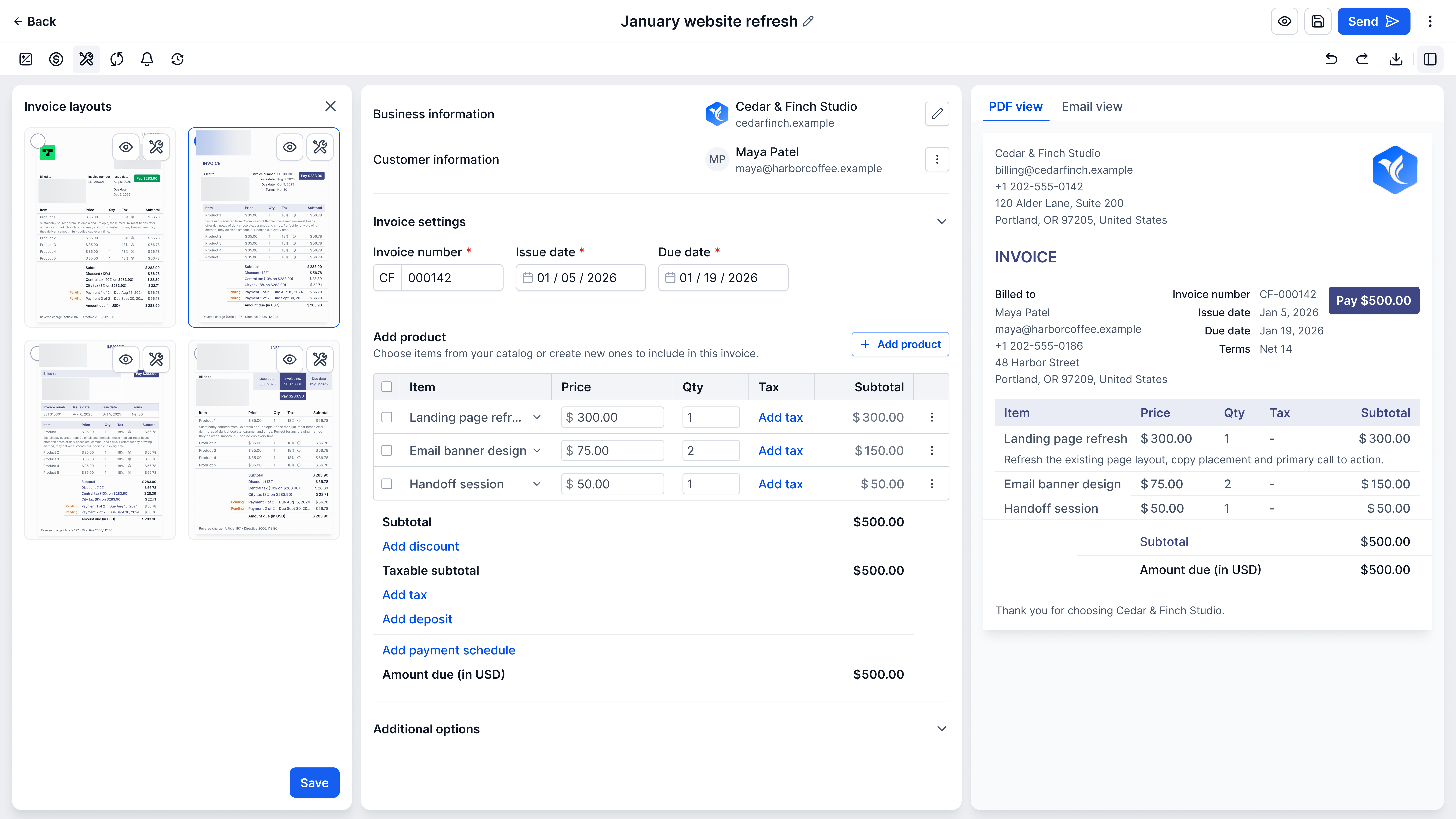
The layouts panel opens beside the draft: four templates, each with preview and edit controls.
Optional details
Out of the way until an invoice needs them
Optional details stay out of the main drafting path. Linking an opportunity, adding terms and notes, and attaching files are each switched on when an invoice needs them, below the totals.
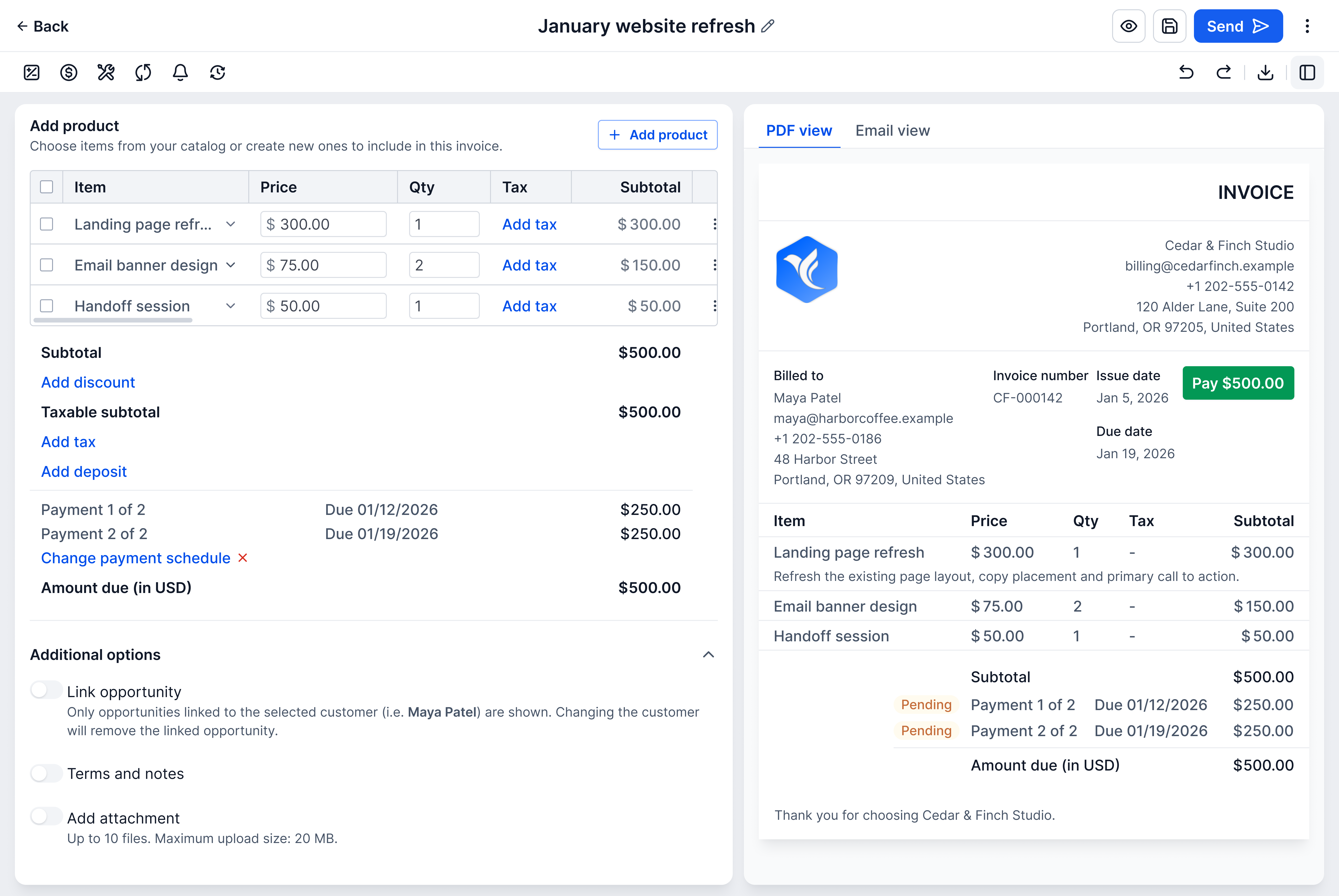
Until they are needed, the optional details are three switches below the totals.
03 / Scope
A client exception should not become everyone’s default
Bringing the controls closer was one decision.
Keeping their effect on one invoice was another.
Invoice-level rules
One client’s exception, on one invoice
I kept payment and reminder settings specific to the invoice being edited. Merchants could change the rules for that invoice — partial payments, late fees, tips, processing fees, allowed payment methods and reminders — without changing them for everyone else.
In the design, each rule sits in the invoice’s own payment panel, compact until it is enabled, with its values beside it.
The enabled state exposes each rule’s values within the same payment panel.
Reminders work the same way as payment rules. An invoice can carry several, each switched on or off on its own, with its templates, its timing against the invoice dates and a maximum count — and changing them changes only that invoice.
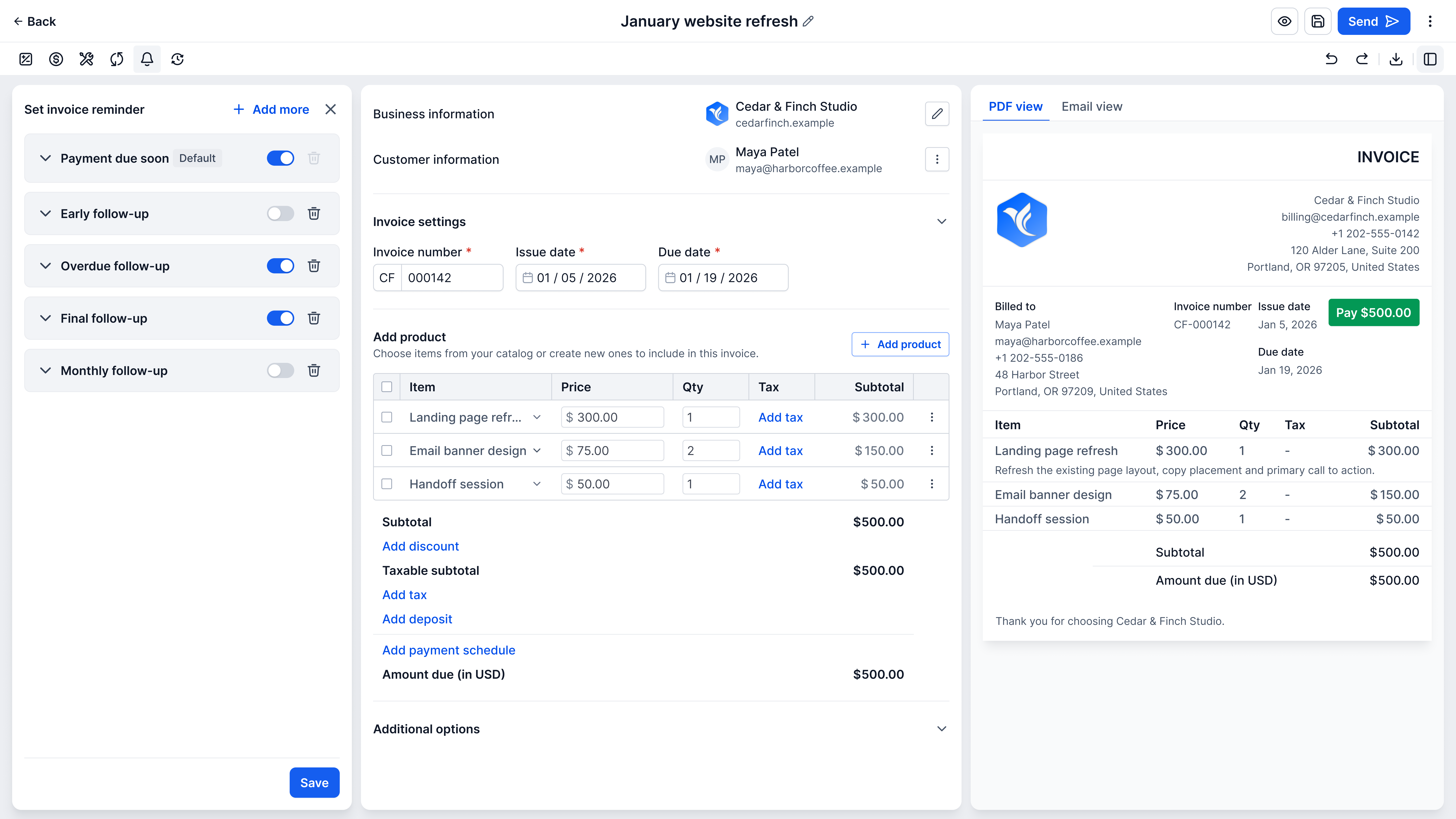
Reminders listed together, each switched on or off on its own; the first is the default.
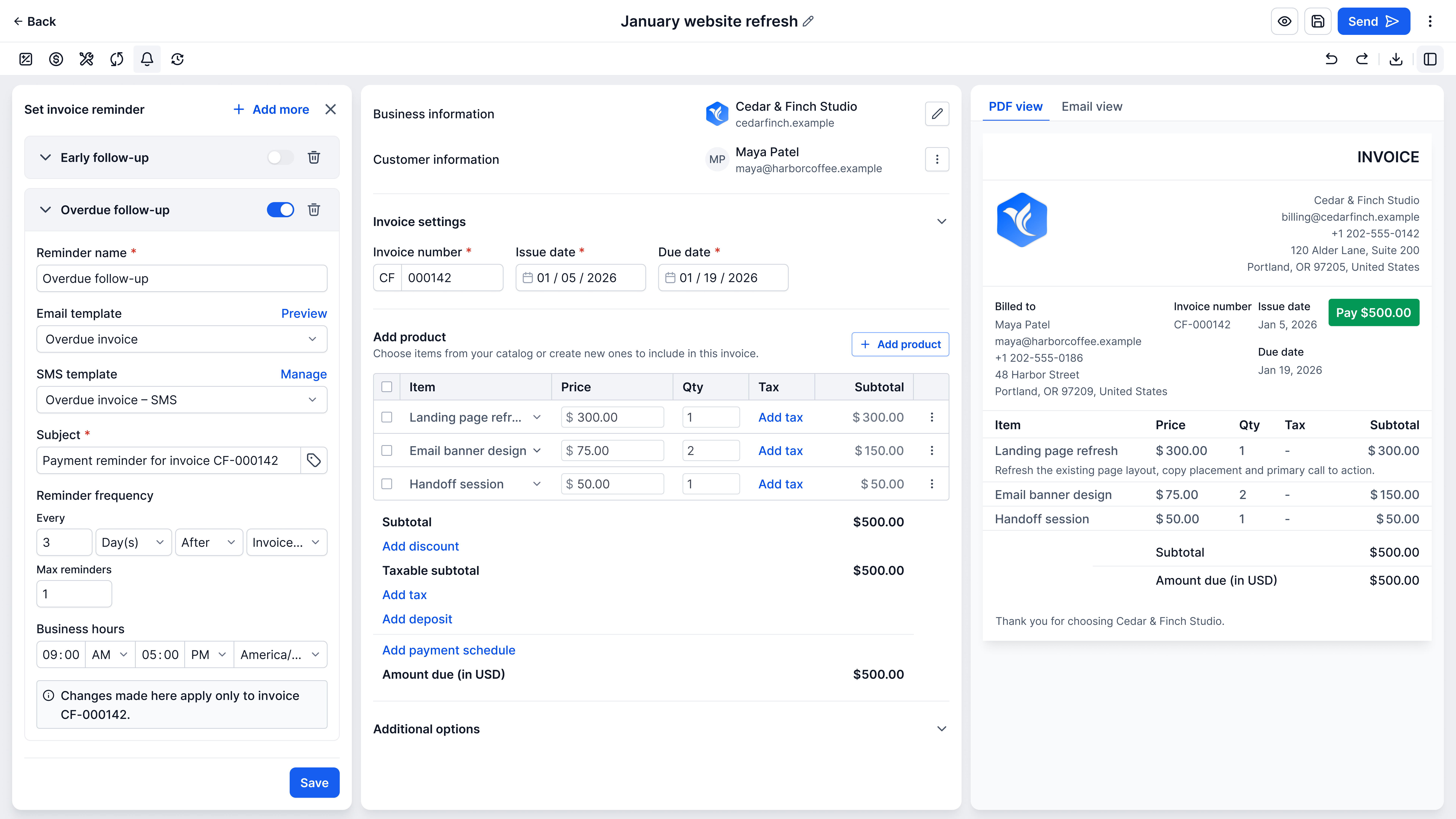
Each reminder sets its templates, timing, maximum count and business hours, with a note that changes apply only to this invoice.
Scope model
One invoice’s change stays on that invoice
A rule changed in one invoice’s panel
- This invoice: The rule applies here.
- Account defaults: Unchanged by an edit on one invoice.
- Other invoices: Unchanged by an edit on one invoice.
What a rule changed in one invoice’s panel affects, and what it leaves alone.
04 / Balance
The balance has to stay explainable
Deposits, partial payments and schedules turn one amount due into several facts.
The actions that change them should not look alike.
Payment actions
Collecting a payment is not recording one
What was billed, what has been paid, what is scheduled and what remains are related facts, and they change through different actions. A payment already received, a schedule of instalments for one invoice and a recurring invoice generated over time are three different things.
So I separated collecting a new card payment from recording money already received: they are two choices in the payment panel, not one form. Recording manually takes the mode of payment, an amount or the scheduled payments it covers, the payment date and a note.
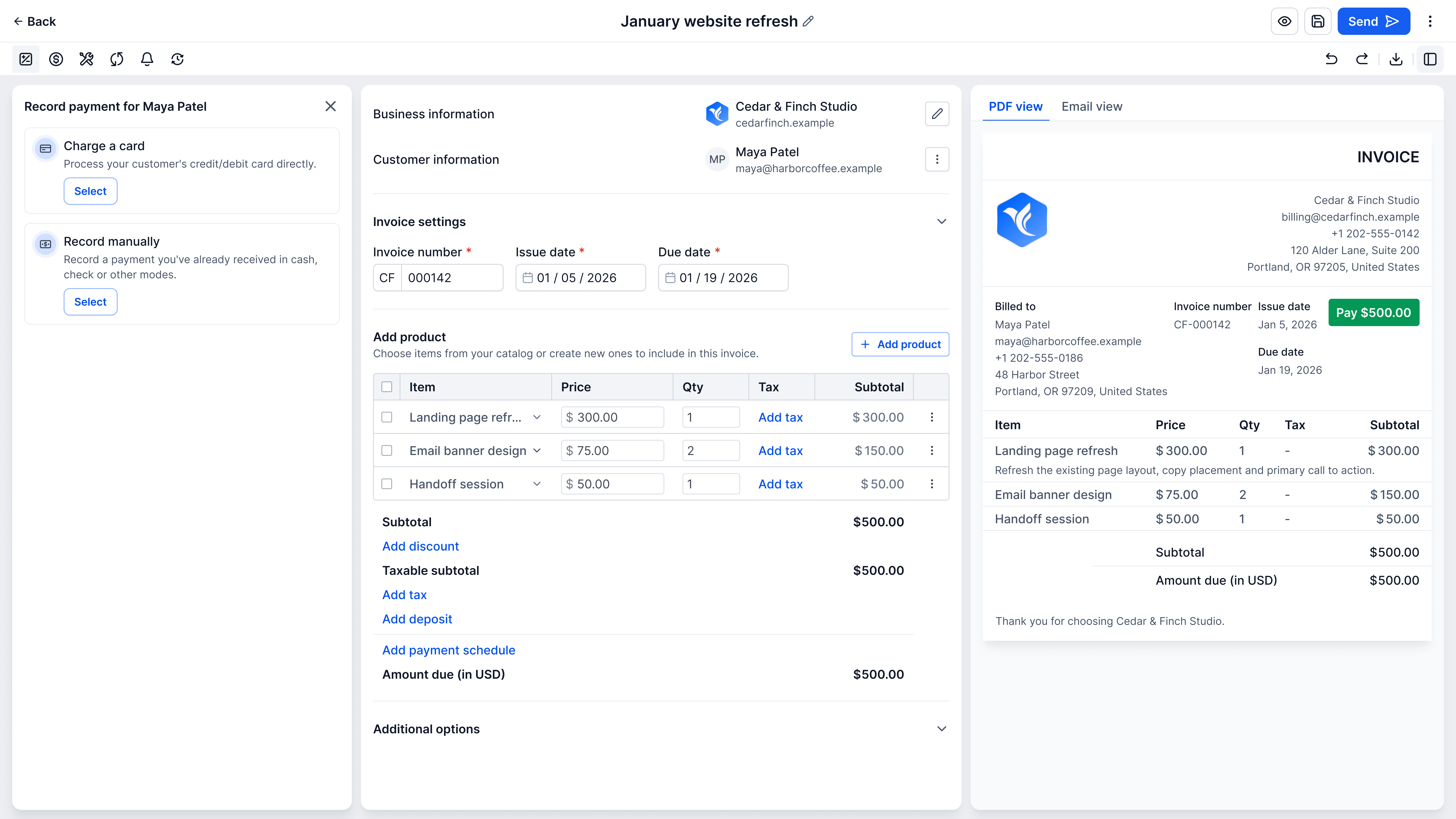
Charging a card and recording money already received are separate choices.
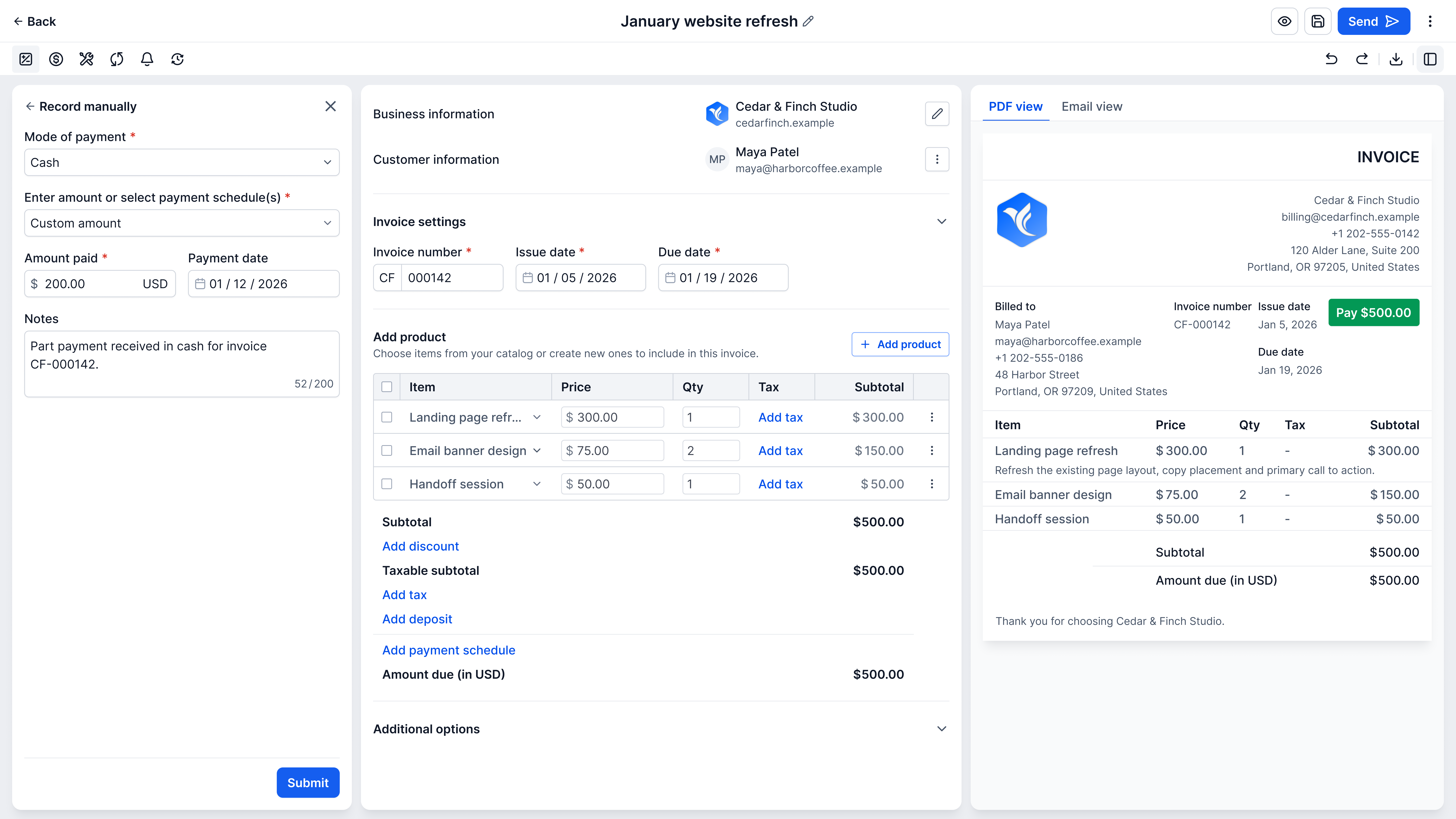
Recording manually, before submission: $200.00 in cash, dated Jan 12, 2026, against the $500.00 invoice. The specification allocates a custom amount to the earliest unpaid instalments when none are selected.
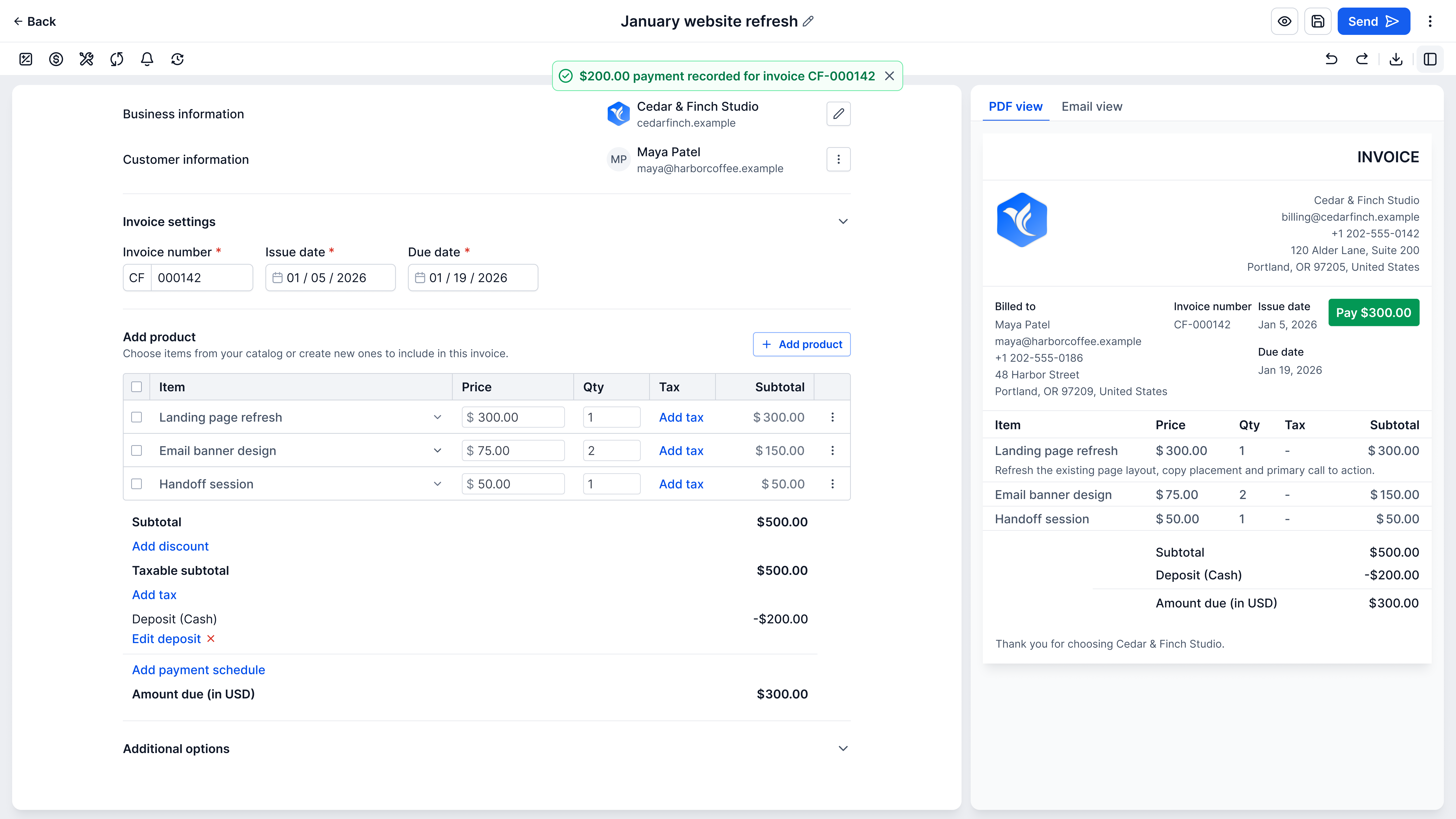
Recreated for this case study: a $200.00 cash payment is recorded against a $500.00 invoice, leaving $300.00 due.
Schedules
Building a payment schedule from a count and frequency
Long schedules were slow to enter: a 26-week plan meant 26 dates and 26 amounts. I designed the schedule around a number of instalments and a frequency instead, in fixed amounts or percentages, with a running total and what is left to allocate.
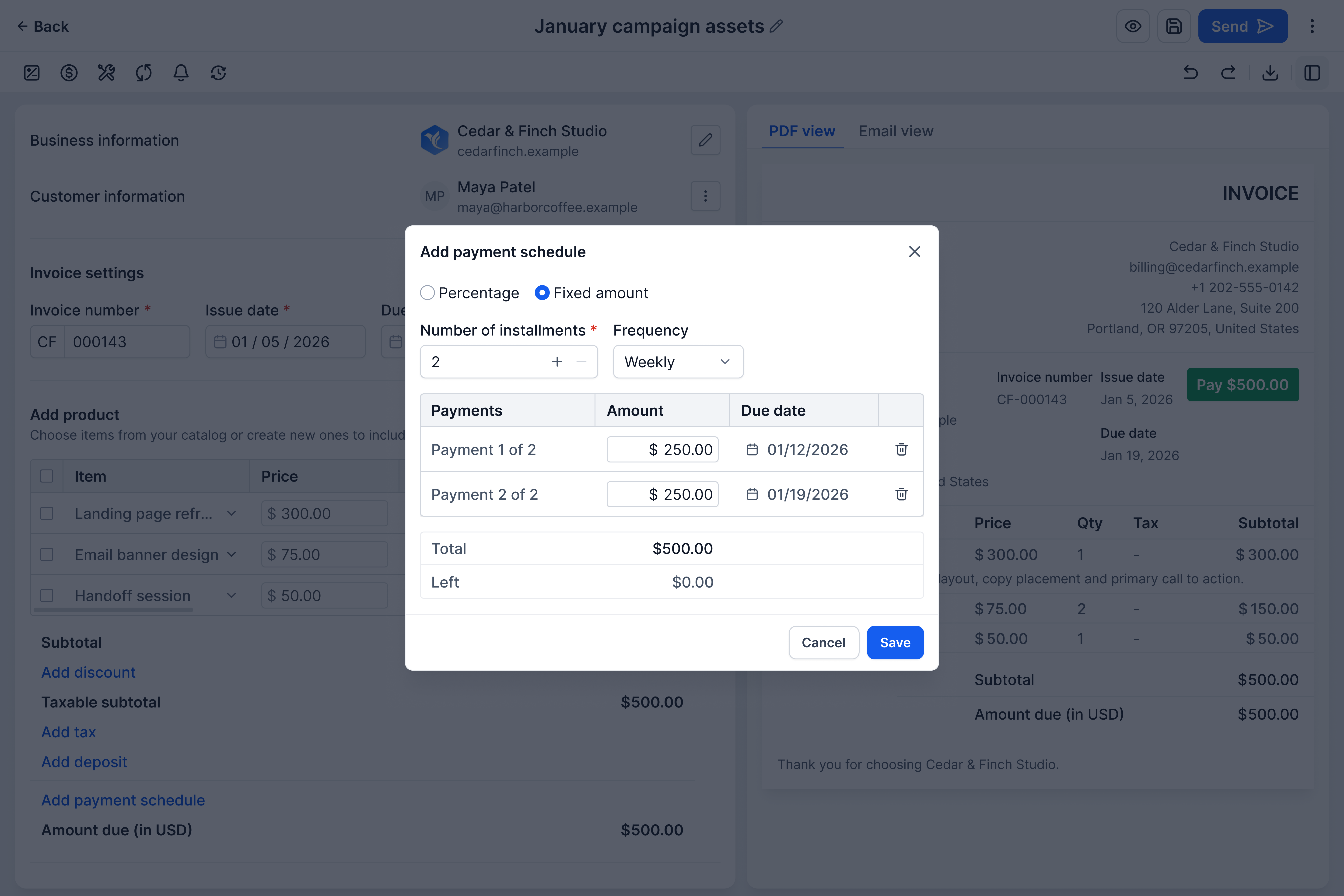
The schedule dialog, on a separate example invoice: fixed amounts or percentages, a number of instalments and a frequency — here two weekly instalments of $250.00, with nothing left to allocate.
05 / Follow-through
Keep accounting and payment status in view
The work did not end when the invoice was sent.
Payment and accounting sync both move on afterwards, and separately.
Accounting sync
Connected, synced and paid are different states
I brought accounting sync into the editor as well: connection controls for QuickBooks, Xero and Wave, the revenue-account mapping and Force sync sit beside the draft. Being connected, having synced and having been paid are different facts, and should not share one indicator.
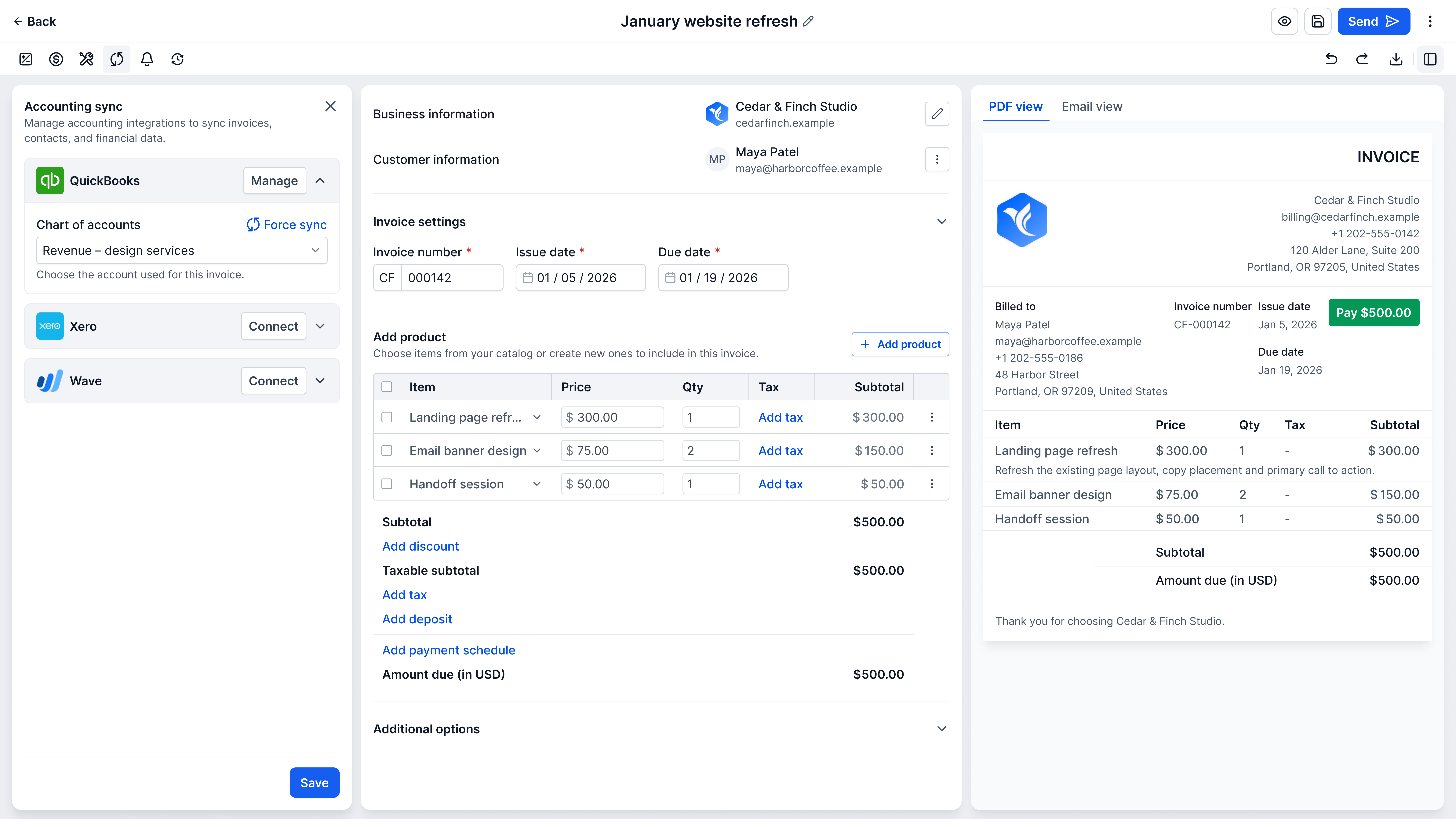
The connected state exposes the revenue-account mapping and a Force sync action beside the draft.
After sending
Following the invoice after sending
The redesign also covered what happens once an invoice is sent: an invoice list showing each invoice’s payment status and its accounting-sync status, quick actions on each row, and a payment history for every invoice. That shipped too.
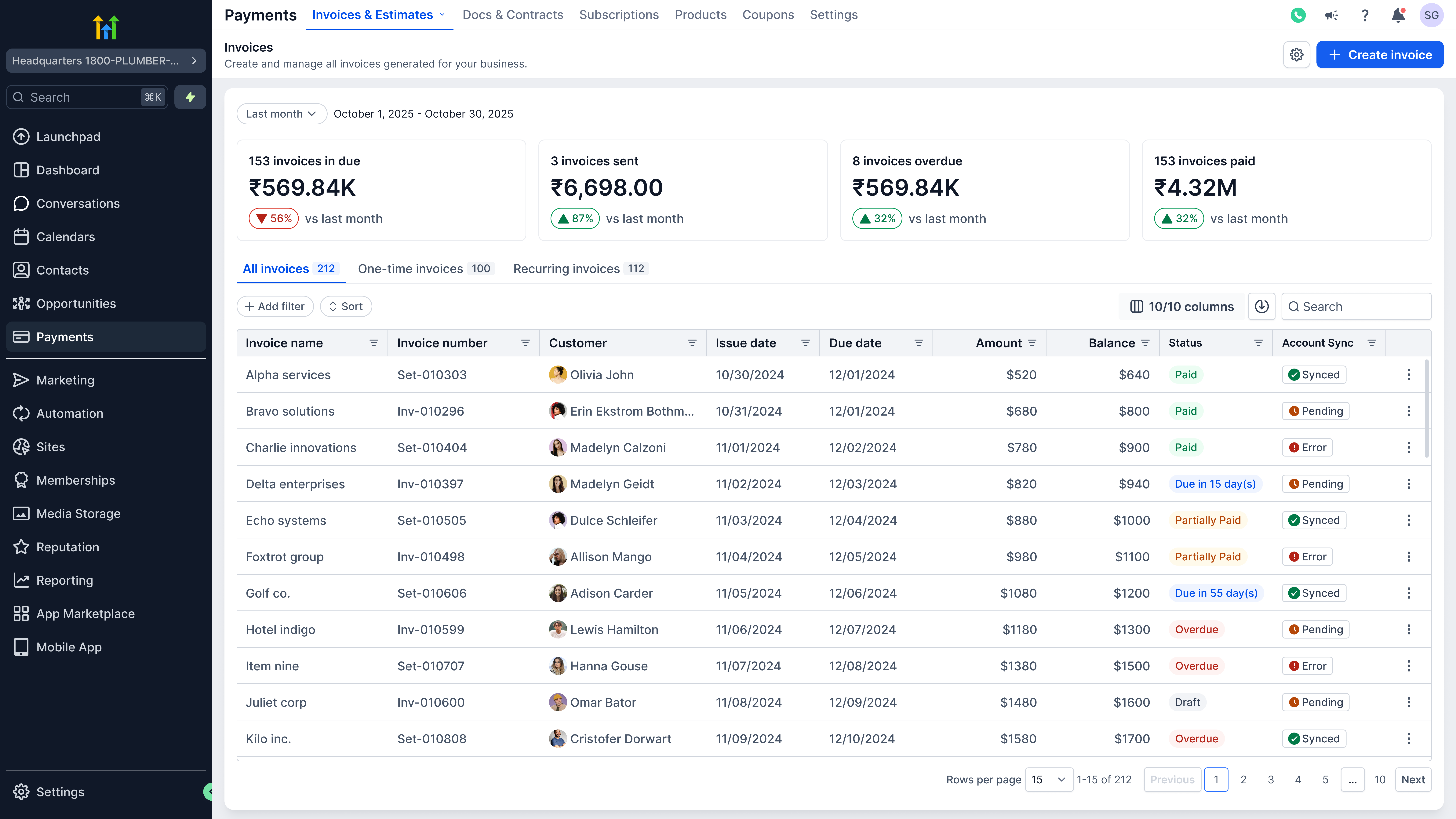
The invoice list: summary figures, filters and one row per invoice. Payment status and accounting-sync status sit in separate columns, so an invoice can read Paid and Error at once. Design artifact; its figures are sample data.
06 / Close
What changed
What shipped, and what it did to the first invoice.
The first invoice, after the redesign
2 hours to 32 minutes
Average active time to publish a first invoice
Active work up to first publication, measured the same way before and after the redesign shipped.
The redesign organised drafting, configuration and follow-up around the invoice. Panels opened beside the document instead of away from it; one builder handled one-time and recurring invoices; payment actions were separated by what they did; and the invoice list brought each invoice back into the wider billing workflow.
The decision that mattered was to stop adding to the builder one request at a time, and redesign the workflow those requests belonged to.